
Find supported content
Search supported inventory items, choose quantities and prepare additions through a guided interface.
Guided Save Editor · Windows PC
Starlight Studio helps you manage supported parts of a compatible game save through a clear interface instead of manually editing game files. Changes can be staged and reviewed before saving, with backups and validation supporting a careful workflow.
Windows PC only. No macOS, console or mobile version is currently offered.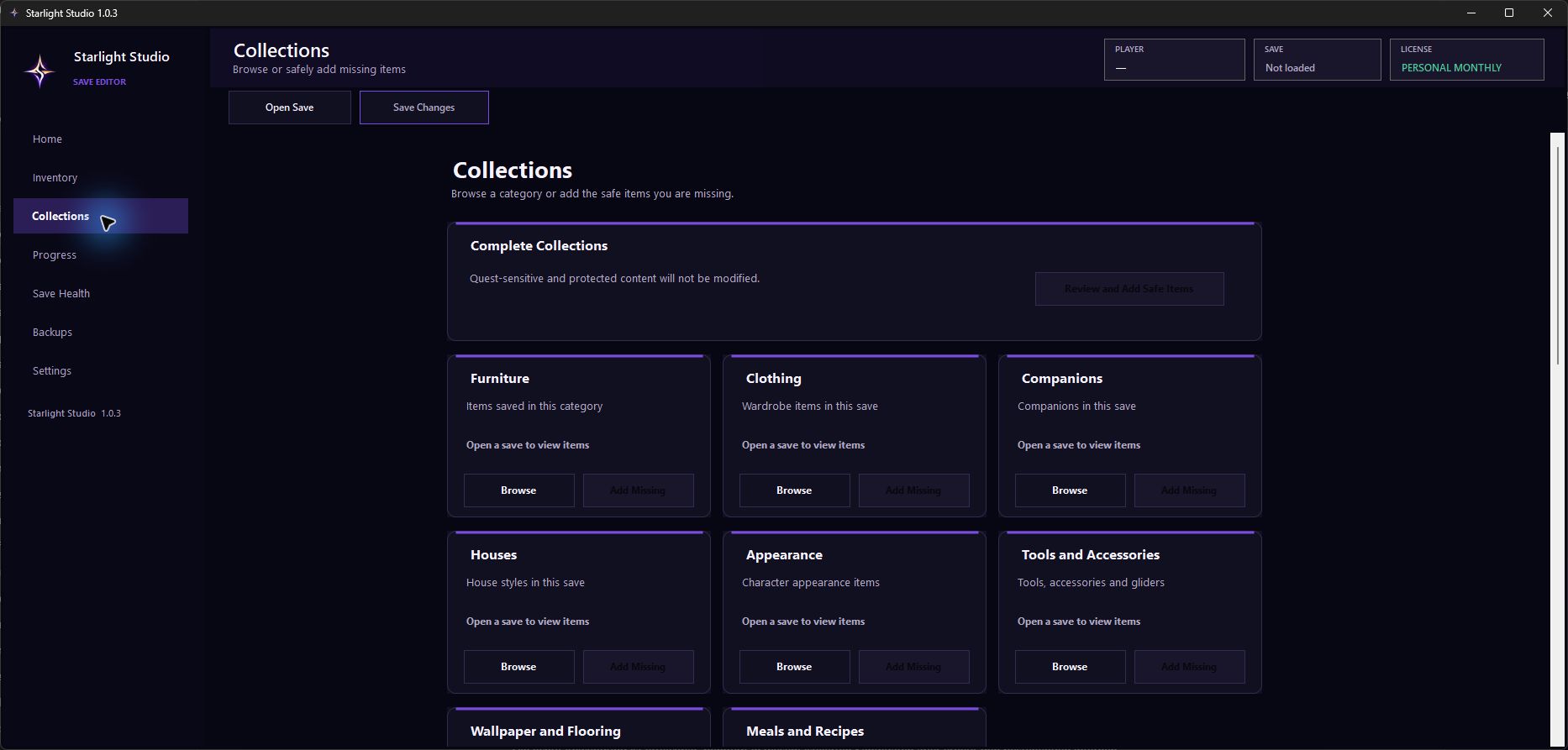
What you can do
Customer tools focus on supported save changes. Expert and raw development tools are not presented as standard customer features.
Search supported inventory items, choose quantities and prepare additions through a guided interface.
Browse supported collection categories and review which compatible items are available in the selected save.
View and manage supported progress-related save values without working directly in raw game files.
Changes remain pending so you can review them before they are written to the selected save.
Critical save operations create a backup, giving you a recovery path if you need to restore an earlier state.
Validation and save-health tools help surface supported issues before or around important operations.
Open and switch between supported save files explicitly, including saves stored outside the default folder.
Compatible game content data can be refreshed independently when a protected update is available.
How it works
Each license is a one-time purchase for the stated access period. It does not renew automatically. Updates are included while the license is active; when access expires, activation and licensed online services are no longer available unless you purchase a new period.
Compare Studio PlansSelect the access period and limits that fit your use.
After verified payment, your license and Windows download are available in your account.
Install Starlight Studio and activate it with the product key issued to your account.
Use the normal file picker to select the compatible save you want to work with.
Use the customer tools, review pending changes, then save with backup protection.
Choose Studio when
You use a compatible Windows PC and save workflow, want to choose the save yourself, and prefer ongoing access during your license period.
View Studio plans →Choose a service when
You prefer a done-for-you workflow and want your purchase managed as an order in your customer account.
Browse services →